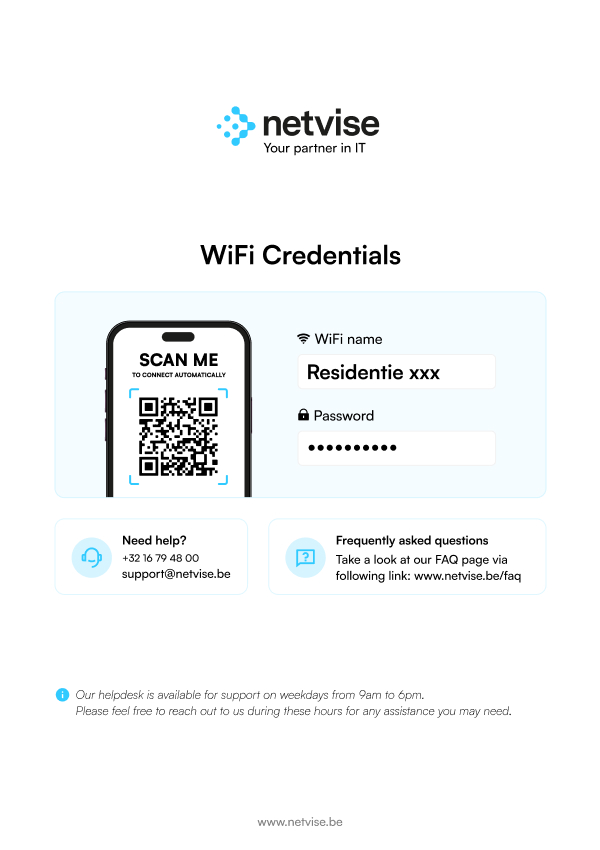
What are the network details (SSID and password) of the WiFi network?
Every room comes with its own secure Wi-Fi connection. Simply scan the QR code on your Wi-Fi card or Wi-Fi access point (shown below) to connect. If you can’t find them, don’t worry, our helpdesk will be happy to assist.
Note: Some residences may still use a shared Wi-Fi network. If this is the case, you can find the network details displayed in the entrance hall on a poster like the one shown below.
What should I do if I can't connect to the WiFi network?
Check if you have entered the correct password, restart your device, and try to connect again. If the problem persists, contact technical support at [email protected] or +32 16 79 48 00.
How secure is the WiFi network?
Our Wi-Fi network uses WPA2 encryption and assigns a unique password to each user, ensuring that every connection is completely private and isolated from others. This setup provides enhanced security and privacy, as your devices communicate only within your own protected subnetwork.
If you prefer not to use the provided Wi-Fi, most units also have the option to set up their own private network with a provider of their choice, allowing full control over network management and configuration.
Is my internet usage monitored?
We monitor the network traffic and bandwidth to maintain the integrity and security of the network, but we guarantee the privacy of our users.
What is the maximum speed of the WiFi network?
The maximum speed can vary, but we strive to provide the highest possible speed for all users.
Are there any data usage limits?
There are no specific limits on data usage.
What can I do if my internet connection is slow?
Avoid using bandwidth-intensive applications during peak hours, and contact technical support if the problem persists.
Which devices are compatible with the WiFi network?
Our WiFi network is compatible with most modern devices, including laptops, smartphones, tablets, and smart home devices.
Can I connect multiple devices to the WiFi network simultaneously?
Yes, you can connect multiple devices.
Can I connect my own router to the network?
This is not allowed to ensure the integrity and security of the network. if your residence does not offer a shared WiFi network it will be necessary to configure your router as an access point to avoid IP address conflicts. Contact technical support for more information.
What should I do in case of network outages or maintenance?
We will inform you via email or the network portal about planned maintenance and outages. For unexpected outages, you can contact technical support.
How can I provide feedback about the WiFi network?
Download the Salto KS Keychain app from the App Store (iOS) or Google Play Store (Android). Install and open the app. Use your invitation link (sent by email) to create your Salto account. Once logged in, your digital key activates automatically.
What if I didn’t receive or my invitation link expired?
If your invitation link has expired or you never received one, please contact your property manager or our helpdesk. They can issue a new link for you.
What methods can I use to open doors?
You can unlock doors in three easy ways:
Mobile App
Open the app → Hold phone near lock → Tap on the Digital Key button
PIN Code
Enter your personal 6-digit code on the lock (only for keypads)
Keycard/Fob
Hold card/fob against the reader → Wait for the green light
How can I help tenants access this FAQ easily?
Looking to make things easier for your tenants? We’ve prepared a ready-to-print PDF that includes a QR code linking to our global support page. Simply download, print, and place it in your property. Your tenants will have instant access to the information they need.